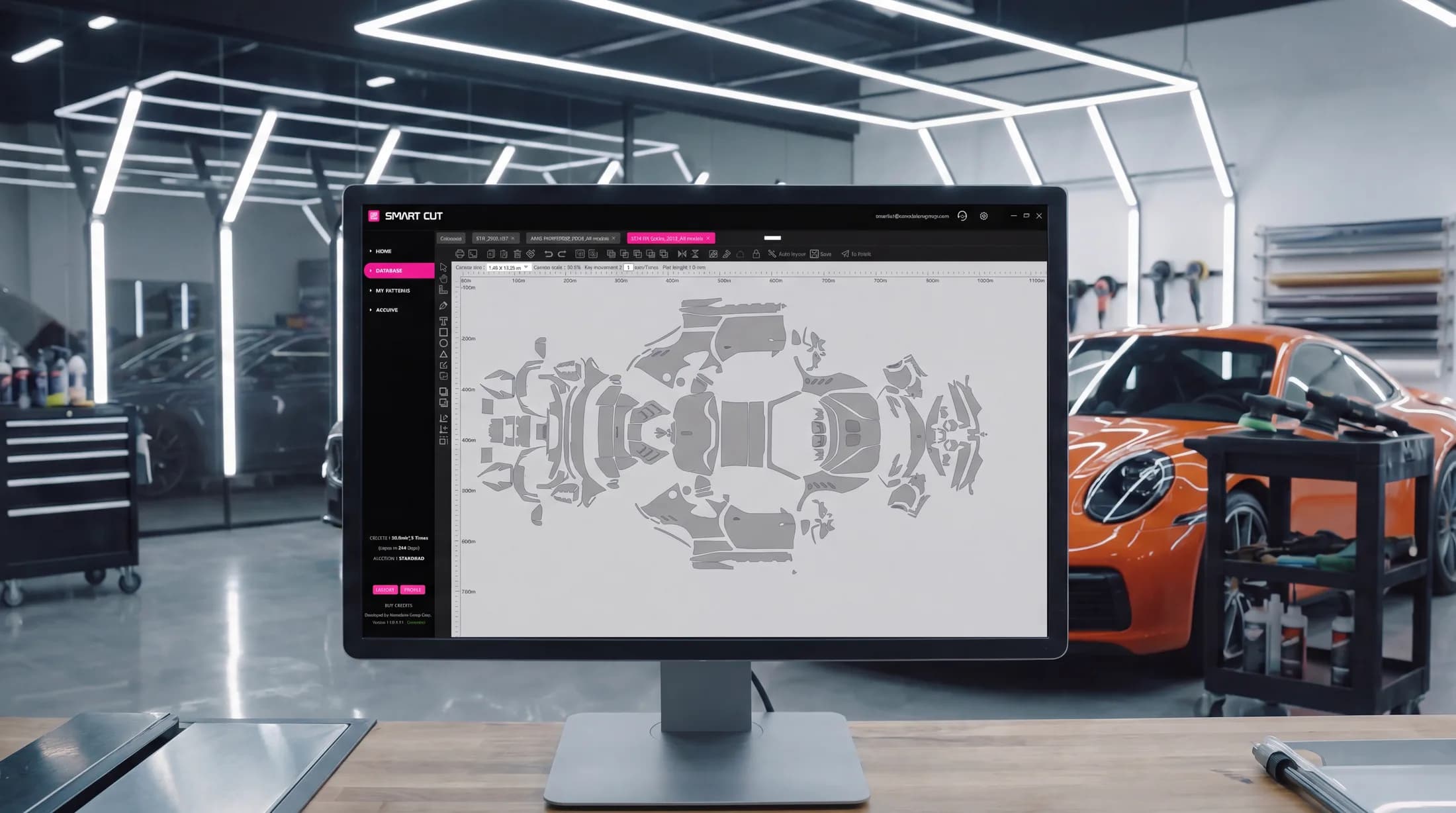
Ceramic Pro Smart Cut

Patterns for every car, AI Auto Layout and precision 3D-scanned templates — saving up to 30% of working time and film on every job.
Free trial · Windows 10 / 11
Everything a cutting station needs
One platform covers the full workflow — from finding the pattern to sending it to the plotter.
More profitable
Cut faster with less waste. Smart Cut saves up to 30% of working time and overall expenses on every job.
Extensive database
An ever-growing pattern database for cars, motorcycles, and watches from manufacturers worldwide — including window film patterns for vehicles.
AI Auto Layout
Advanced AI automatically arranges your cut patterns on the software canvas to maximise material efficiency — saving up to 20% more film compared to arranging patterns manually on the canvas.
Open access
Buy cutting credits your way — pay-per-meter packages, or unlimited cutting area with the Monthly or Annual plan.
Built-in payments
Pay instantly inside the software with PayPal or a credit or debit card.
3D-scanned precision
Templates come from state-of-the-art 3D scans that account for the shape of every part, the flexibility of the film, and edge wraps where required.
See Smart Cut in action
A short tour of the software — from finding the right pattern to cutting, with a focus on what Smart Cut brings to your business.
- Find the pattern you need in seconds
- Let AI Auto Layout optimize the canvas
- Save film and reduce cutting risks
- Train staff faster and complete jobs more efficiently
- Reduce costs and increase profit
Quick start in 5 min
Up and running in three steps — from download to your first accurate cut.
- 1
Download the app
Install Ceramic Pro Smart Cut on a Windows 10 or 11 PC.
- 2
Create your account
Register directly in the software to set up your workspace.
- 3
Activate your free trial
Open the Buy Credits section and activate your free trial instantly — without waiting for approval or additional authorization.
Free trial · Windows 10 / 11
Everything you need to get cutting
Watch the full guide, then keep the manuals close.
Please note: the credit activation steps shown in this video (KAVACA Smart Cut) are outdated — credits now activate automatically, no codes required. Updated multilingual video coming soon.
User manual
Full step-by-step PDF guide to installing and using Smart Cut.
Need help?
Our team answers installation, activation and cutting questions.
Compatible plottersCheck the list of supported plotters before you connect your device.
USBPlease note: Smart Cut connects to plotters via USB cable only.
GCC
Jaguar, Puma, Expert, RX & VII Series · i-Craft · ZenCut · Sable · Vogue · ECO2 · MLP2 · AR-24
Graphtec
5000, 6000, 7000, 8000, 8600 & 9000 Series · CG130SR II · CPT1520
Saga
kele-3 · CNC2 · CNC3 · 100
Roland
GR540 · GR640
Mimaki
CG-FX160/60SR · GS-FX160Plus
Others
Summa D-160 · Gunner DSG Plate · TENETH T-series · TiVEN V175
Don't see your plotter on this list? It may still be compatible. Please send us its PID and VID for verification. If you're unsure how to find these numbers, please .
Why installers switch
How the workflow changes when pre-cut patterns replace shaping and trimming film on the vehicle.
| Stage | Traditional bulk installation | Ceramic Pro Smart Cut |
|---|---|---|
| Finding the pattern | Traditional bulk installationFilm is shaped and trimmed manually on the vehicle | Ceramic Pro Smart CutSearch the worldwide database — cars, motorcycles, watches, and window film |
| Fit | Traditional bulk installationFit depends on the installer’s skill and hand trimming | Ceramic Pro Smart CutPrecision patterns from 3D scans, with edge wraps where required — consistent fit every time |
| Film waste | Traditional bulk installationMaterial use depends on manual sizing and cutting | Ceramic Pro Smart CutPre-cut patterns reduce material waste, with AI Auto Layout improving film efficiency even further |
| Risk to paint | Traditional bulk installationHand trimming with a blade on the vehicle | Ceramic Pro Smart CutCut on the plotter, then apply to the vehicle |
| Time & cost per job | Traditional bulk installationBaseline | Ceramic Pro Smart CutUp to 30% saved on working time and overall expenses |
| Hand-cutting skills | Traditional bulk installationRequires advanced hand-cutting skills | Ceramic Pro Smart CutReduces reliance on hand-cutting skills with ready-to-cut precision patterns |
| Staff training | Traditional bulk installationLonger learning curve for consistent results | Ceramic Pro Smart CutSimplifies training and helps installers become productive faster |
Trusted by installers worldwide
From the USA and Europe to Southeast Asia — and dozens of other countries — shops cut with Smart Cut every day.

Start cutting today.
Download the software, activate your free trial and see how much time and material you save on your very next job.
Free trial · Windows 10 / 11
Frequently asked questions
Getting started
How do I start using the software? Is there a trial period?
Download Smart Cut from the official website, install it on your computer, create an account and activate the trial period to explore all features.
How do I activate the trial?
Your trial activates automatically — there are no codes to enter.
- Open the Buy Credits section on the home page.
- Click the large pink TRIAL button.
- Click OK.
You’ll receive an email confirmation, and your trial — 2 weeks, 25 m² and 3 Auto Layouts — is ready to use right away.
How much does Ceramic Pro Smart Cut cost?
Several cutting-credit packages are available inside the software: two packages based on square meters (50 or 100 m²) usable within 365 days, which also include a number of free Auto Layouts; and Monthly or Annual packages with unlimited cutting area — Auto Layouts are not included but can be purchased separately.
Payments
Payment via card or PayPal fails. What can I do?
Card payments (Debit or Credit card) now run on Stripe, one of the most reliable payment platforms in the world. If a card payment fails, try PayPal — you can pay there by bank card too, without a PayPal account.
We can also issue an invoice payable by bank card, Apple Pay or Google Pay: send your billing details to support@nanoshine-group.com.
I purchased credits, but they haven’t appeared in my balance. What should I do?
Credits activate automatically and instantly once your payment goes through — there’s no code to enter. If they haven’t appeared, contact support@nanoshine-group.com with the email address and payment method you used, so we can find the transaction and resolve it quickly.
I bought Auto Layout credits, but the database is still not accessible and I can’t cut film. Why?
Auto Layout credits only cover the AI Auto Layout feature and don’t grant access to the cutting database. To cut film, you need cutting credits.
- Cutting credits: grant access to the database and enable film cutting.
- Auto Layout credits: usable only for the AI Auto Layout feature.
What are the Monthly and Annual plans? Are they subscriptions?
Both plans give unlimited cutting area; Auto Layouts are sold separately.
- Monthly plan: auto-renewal is an option you can turn on, not a requirement — you can also pay for a single month.
- Annual plan: a one-time yearly purchase with no auto-renewal option.
How do I turn on auto-renewal for my Monthly plan?
While purchasing the Monthly plan, tick “Enable automatic renewal for this subscription” before clicking Proceed to Payment. This works whether you pay by card or PayPal.
How do I cancel auto-renewal or my subscription?
Open the Buy Credits section and tap Manage Subscription. This cancels the next charge — your credits stay active until the end of the period you’ve already paid for.
The Manage Subscription button only appears while you have an active subscription.
Do your prices include VAT? Will I be charged VAT?
Prices are shown excluding VAT. Whether VAT applies depends on the country you selected when registering your account:
- EU customers paying by card (Debit or Credit card): if you don’t enter a VAT number in your billing details, 19% VAT is added to the price. If you enter your company’s valid VAT number and click Confirm and Save, our system checks it in the VAT register and sets VAT to 0% — the invoice is issued under the reverse charge mechanism.
- Customers outside the EU: no VAT is charged, and the VAT section isn’t shown at checkout.
How do I enter my VAT number correctly?
Always start your VAT number with your country code — for example DE123456789 for Germany or PL1234567890 for Poland. The country code for Greece is EL (not GR), and for Northern Ireland it’s XI.
After entering the number, click Confirm and Save so our system can verify it before you proceed to payment.
How do I add or update my billing details?
- Open the Buy Credits section and select a package.
- In the pop-up window, find the Billing Address section on the right.
- Enter your company or individual name, VAT number (if applicable), address, city, country and postal code.
- Click Confirm and Save, then continue to payment.
The details you enter are used to generate your Invoice / Receipt.
Will I receive an invoice for my company’s accounting?
Yes. Right after your purchase, an Invoice / Receipt is sent to your email. It includes:
- our company details and VAT number;
- your details as entered in the billing window — name, address and VAT number;
- what you purchased, including the type of credits;
- all cost calculations — subtotal, VAT and total.
Features
Can I edit the patterns?
Yes. Use pattern editing mode with tools such as Add Anchor and Edge Expansion. For a detailed walkthrough, watch the video manual from 9:15 to 12:30 in the Software Guide section.
How do I learn the features and tools of Smart Cut?
Refer to the PDF and video instructions in the Software Guide section inside the software, or on this page above. They walk through every feature with demonstrations.
What is the AI Auto Layout feature?
AI Auto Layout uses advanced algorithms and cloud-server power to arrange cut patterns on the canvas so material waste is minimised — saving up to 20% more film compared to arranging patterns manually on the canvas.
Learn more in the PDF and video instructions in the Software Guide section.
Why isn’t AI Auto Layout free with the Monthly or Annual plans?
AI Auto Layout uses significant cloud computing resources, which incurs additional costs, so it isn’t included free with the Monthly or Annual unlimited cutting area plans. A limited number of Auto Layouts is included free with the 50 and 100 m² packages.
Usage and troubleshooting
I can’t log in — it shows “Login Temporarily Limited”.
Login restrictions usually happen for one of these reasons:
- Unauthorized computer: the computer isn’t authorized for your account. Log in on a previously authorized computer or contact support.
- Network change: switching your connection method (e.g. Wi-Fi to LAN) can trigger the restriction. Reconnect the previous way or contact support.
- Third-party USB devices: remove extra USB devices, such as a camera or scanner, and try again.
Still blocked? Contact support@nanoshine-group.com.
How can I log into my account on another computer?
Perform a trial login on the new device so its ID is registered in the system, then contact support@nanoshine-group.com and we’ll link the device to your account.
Can I use my account on multiple computers at once?
No — for database security a single account can’t work on several devices simultaneously. To switch devices, contact support each time so we can link the new one.
The pattern I need isn’t in the database. What should I do?
Contact Smart Cut Support with the exact model and modification of the vehicle or motorcycle, including photos from all four sides. We’ll do our best to expedite creating the pattern.
Can I import my own patterns?
Yes. Import your own patterns in PLT format with the Import custom PLT file option on the left toolbar. Only PLT files exported from CorelDRAW are supported — files from other programs may not open correctly.
Can I export patterns and save them on my computer?
Exporting patterns from the software is not supported, to ensure data integrity and security.
Can I save a pattern in the software?
Yes. Click Save on the top toolbar — saved patterns are stored in the My Patterns section.
How long can I use the purchased credits for 50 or 100 square meters?
Credits for 50 or 100 square meters can be used within 365 days from the activation date.
I installed the software, but the Home page is blank. What should I do?
This means the Visual C++ runtime drivers are missing. To install them:
- Download the Visual-C-All-in-One package from the Software Guide.
- Unzip the archive.
- Right-click install_all.bat, select Run as administrator and follow the on-screen instructions.
- Restart your computer.
The Home page should then display correctly.
Can I use the software on a Mac?
Yes, via Parallels running Windows:
- Install Parallels and complete a Windows installation in it.
- Download Smart Cut from the official website.
- Download the Visual C++ driver package (link in the Software Guide).
- Run install_all.bat as administrator, then restart Windows.
- Unzip the Smart Cut archive, run the setup file and complete the installation.
- Launch the software, create an account and activate your trial in the Buy Credits section.
Unzip and run every file inside Windows, not in macOS.
Plotters and cutting
My plotter is on the supported list, but it doesn’t appear in the software.
Make sure the plotter is connected via USB — the software supports USB connections only. If it still isn’t recognised:
- restart the plotter and the software;
- check that the plotter drivers are installed correctly;
- check the USB cable and port;
- contact support@nanoshine-group.com.
My plotter is not on the supported list. Can I still connect it?
It may still be compatible. Connect it via USB and check whether it appears in the software — some plotters are recognised automatically. If not, send us the plotter model and its PID and VID; in some cases we can add support for additional plotters. Not sure how to find these numbers? Our support team will be glad to help.
I have trouble cutting patterns correctly with my plotter.
Check the following:
- Command language (HP-GL / GP-GL): set the plotter to HP-GL or Auto Command mode.
- Step size: for example, 0.100 instead of 0.025.
- Restart both the plotter and the software.
Smart Cut System
Precision templates from 3D scanning
State-of-the-art 3D scanners account for the complex shapes of car parts and the flexibility of the material — eliminating manual adjustment of pre-cut films during installation.
Smart Cut is the only precision film-cutting software of its kind in the world. Quick start takes about five minutes — from install to the first accurate cut.